
Showing posts with label unity. Show all posts
Showing posts with label unity. Show all posts
2012-04-29
Unity redemption?


2011-12-25
Move the Start button to a better place, please
Redmond, UI Drawing Board committee, early nineties:
"Where should we put the menu bar?"
"Top border!"
"Where should we click the window to drag it?"
"Top border!"
"Where should we put the close button?"
"Top right!"
"Where should we put the minimize and maximize buttons?"
"Top right!"
"And finally, where should we put the Start button?"
"mmmmh... Bottom left!"

Who made that decision may be the Inspector Clouseau of UI Design.
He's responsible for billions of km of useless mouse travel between to most important elements of the user interface.
A better place would be the top row of the screen, as the Mac did in '84:

But I suspect that it wasn't done due to a possible legal issue.
Now that widescreens are the norm, there's a better place to put the taskbask: the right side of the screen:
It's closer to the menu, the gadgets and, by taking up some vertical space, it allows more 4:3-like space to the windows.

Even Unity has its deadly sins too...
"Where should we put the menu bar?"
"Top border!"
"Where should we click the window to drag it?"
"Top border!"
"Where should we put the close button?"
"Top right!"
"Where should we put the minimize and maximize buttons?"
"Top right!"
"And finally, where should we put the Start button?"
"mmmmh... Bottom left!"

Who made that decision may be the Inspector Clouseau of UI Design.
He's responsible for billions of km of useless mouse travel between to most important elements of the user interface.
A better place would be the top row of the screen, as the Mac did in '84:

But I suspect that it wasn't done due to a possible legal issue.
Now that widescreens are the norm, there's a better place to put the taskbask: the right side of the screen:
It's closer to the menu, the gadgets and, by taking up some vertical space, it allows more 4:3-like space to the windows.

Even Unity has its deadly sins too...
2011-10-15
What's the most used button of a browser?
I bet it's the back button.
I usually get it by pushing the mouse left until it hits the screen border
Too bad this actually brings up the left bar on Ubuntu and it covers the button itself.
This actually requires to move the mouse again to clear the bar and then retry to center the button again.
Bad design decision.
Time to give Gnome 3 a try.

Update:
I've found that I'm not the only one that stresses the importance of the back button:
http://www.useit.com/alertbox/990530.html
2011-10-06
Ubuntu Unity
While I like the bravery of trying something new in the GUI field, I think there's some overshooting in Ubuntu Unity.
Merging the menu bar with the title bar can save some screen estate in full screen applications:
look at this maximized terminal window.
A full row is gained by merging the menu and the title, and the menus are accessible as before: by going up and pressing the right mouse button.

Problems arise when using the terminal at its native size and get worse if you put the window in the lower half of the screen: to access the menu you have to travel up half the screen with the mouse.

I'd propose to keep the menu bar attached to the window while not in maximized mode.
2011-09-19
An alternative to Xming: an X Window virtual appliance
install VMware player and create a new VM with the following parameters:
128MB
1CPU
5GB HD
NAT networking
i used Red Hat 5, but other linux distribution will do: just make sure you choose one that supports Unity (seamless integration of VM windows on the Windows host desktop).
install only the base X, and do not select any graphic desktop.
after base OS install, add the packages that are needed to support graphics connections:
yum install gnome-terminal
yum install *metacity*
yum install gnome-themes
yum install gnome-session
make sure VMware tools are installed by now
edit Xclients to make sure a terminal is spawned at startup
#vi /etc/X11/xinit/Xclients
change the bottom of the file to look like this:
# Argh! Nothing good is installed. Fall back to twm
{
# gosh, neither fvwm95 nor fvwm2 is available;
# fall back to failsafe settings
[ -x /usr/bin/xsetroot ] && /usr/bin/xsetroot -solid '#222E45'
# if [ -x /usr/bin/xclock ] ; then
# /usr/bin/xclock -geometry 100x100-5+5 &
# elif [ -x /usr/bin/xclock ] ; then
# /usr/bin/xclock -geometry 100x100-5+5 &
# fi
# if [ -x /usr/bin/xterm ] ; then
# /usr/bin/xterm -geometry 80x50-50+150 &
# fi
# if [ -x /usr/bin/firefox -a -f /usr/share/doc/HTML/index.html ]; then
# /usr/bin/firefox /usr/share/doc/HTML/index.html &
# fi
if [ -x /usr/bin/metacity ] ; then
/usr/bin/gnome-terminal &
exec /usr/bin/metacity
fi
if [ -x /usr/bin/twm ] ; then
exec /usr/bin/twm
fi
}
add an unprivileged user
#useradd user
enable it to sudo
#visudo
add this line at the end of file
user ALL=(ALL) NOPASSWD: ALL
set autologon to user
#vi /etc/gdm/custom.conf
in the [deamon] section add the following lines
[daemon]
AutomaticLoginEnable=true
AutomaticLogin=user
now it's time to trim down the VM by stripping all the unneeded packages:
yum remove yum-updates ypbind wpa_supplicant wdaemon
yum erase xinetd yum-updatesd
yum erase vnc-server
yum erase openssh-server smart* sendmail*
yum erase system-config-*
yum erase nfs*
yum erase cyrus-sasl
yum erase rhnsd
yum erase readahead*
yum erase iputils
yum erase portmap pcsc* bluez*
yum erase anacron
yum erase atd
yum erase audit
yum erase cups
yum erase dnsmasq
yum erase iptables*
yum erase krb5*
yum erase krb5-wo*
yum erase mcstrans
yum erase ntp psacct
yum erase irda*
and switch off what we can't remove
chkconfig atd off
chkconfig avahi-daemon off
chkconfig avahi-dnsconfd off
chkconfig gpm off
chkconfig mcstrans off
chkconfig netfs off
chkconfig restorecond off
create a windows shortcut to start your VM in Unity mode like this:
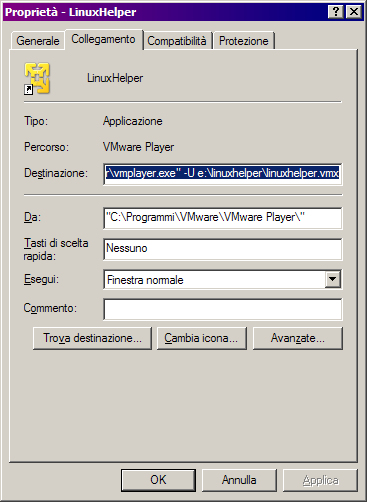
put a "-U" before the pathname of your vmx file: that will cause the VM to startup in Unity mode.
Launching that shortcut will open a gnome terminal right on your desktop.
From there you can connect to other machines with
ssh -X l user remotehost
and then run any graphic application alongside other windows applications on your desktop.

Subscribe to:
Posts (Atom)