sometimes Xming misbehave connecting to some machines, so i devised a way to use a real, native, X server on a windows desktop.
install VMware player and create a new VM with the following parameters:
128MB
1CPU
5GB HD
NAT networking
i used Red Hat 5, but other linux distribution will do: just make sure you choose one that supports Unity (seamless integration of VM windows on the Windows host desktop).
install only the base X, and do not select any graphic desktop.
after base OS install, add the packages that are needed to support graphics connections:
yum install gnome-terminal
yum install *metacity*
yum install gnome-themes
yum install gnome-session
make sure VMware tools are installed by now
edit Xclients to make sure a terminal is spawned at startup
#vi /etc/X11/xinit/Xclients
change the bottom of the file to look like this:
# Argh! Nothing good is installed. Fall back to twm
{
# gosh, neither fvwm95 nor fvwm2 is available;
# fall back to failsafe settings
[ -x /usr/bin/xsetroot ] && /usr/bin/xsetroot -solid '#222E45'
# if [ -x /usr/bin/xclock ] ; then
# /usr/bin/xclock -geometry 100x100-5+5 &
# elif [ -x /usr/bin/xclock ] ; then
# /usr/bin/xclock -geometry 100x100-5+5 &
# fi
# if [ -x /usr/bin/xterm ] ; then
# /usr/bin/xterm -geometry 80x50-50+150 &
# fi
# if [ -x /usr/bin/firefox -a -f /usr/share/doc/HTML/index.html ]; then
# /usr/bin/firefox /usr/share/doc/HTML/index.html &
# fi
if [ -x /usr/bin/metacity ] ; then
/usr/bin/gnome-terminal &
exec /usr/bin/metacity
fi
if [ -x /usr/bin/twm ] ; then
exec /usr/bin/twm
fi
}
add an unprivileged user
#useradd user
enable it to sudo
#visudo
add this line at the end of file
user ALL=(ALL) NOPASSWD: ALL
set autologon to user
#vi /etc/gdm/custom.conf
in the [deamon] section add the following lines
[daemon]
AutomaticLoginEnable=true
AutomaticLogin=user
now it's time to trim down the VM by stripping all the unneeded packages:
yum remove yum-updates ypbind wpa_supplicant wdaemon
yum erase xinetd yum-updatesd
yum erase vnc-server
yum erase openssh-server smart* sendmail*
yum erase system-config-*
yum erase nfs*
yum erase cyrus-sasl
yum erase rhnsd
yum erase readahead*
yum erase iputils
yum erase portmap pcsc* bluez*
yum erase anacron
yum erase atd
yum erase audit
yum erase cups
yum erase dnsmasq
yum erase iptables*
yum erase krb5*
yum erase krb5-wo*
yum erase mcstrans
yum erase ntp psacct
yum erase irda*
and switch off what we can't remove
chkconfig atd off
chkconfig avahi-daemon off
chkconfig avahi-dnsconfd off
chkconfig gpm off
chkconfig mcstrans off
chkconfig netfs off
chkconfig restorecond off
create a windows shortcut to start your VM in Unity mode like this:
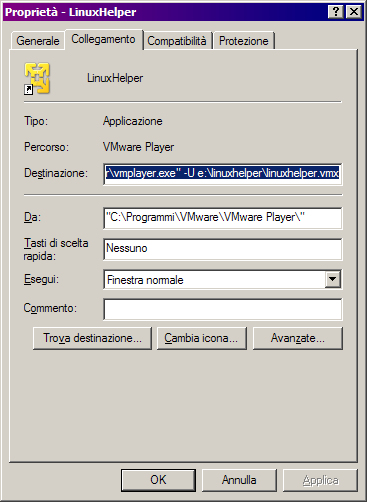
put a "-U" before the pathname of your vmx file: that will cause the VM to startup in Unity mode.
Launching that shortcut will open a gnome terminal right on your desktop.
From there you can connect to other machines with
ssh -X l user remotehost
and then run any graphic application alongside other windows applications on your desktop.


